> ## Documentation Index
> Fetch the complete documentation index at: https://docs.mercurjs.com/llms.txt
> Use this file to discover all available pages before exploring further.
# Medusa Cloud deployment
> Deploy Mercur — backend, admin panel, and vendor panel — on Medusa Cloud.
## Introduction
[Medusa Cloud](https://cloud.medusajs.com) is a dedicated hosting service for Medusa-based applications. It automatically detects changes on your repository, pulls and builds the code, and provisions a database, Redis, and file storage.
Head to the [Medusa Cloud signup page](https://cloud.medusajs.com/signup) to get started. After registration is complete and your account is active, authorize the Medusa Cloud GitHub app in your organization or personal account.
A single Medusa Cloud deployment serves everything: the backend API, the
**admin panel** at `/dashboard`, and the **vendor panel** at `/seller`. The
panels are built together with the backend and served from the same origin —
no separate hosting is needed.
## How it works
The `basic` template wires this up out of the box:
* During `build`, the API package builds both panels and bundles their production
output into the Medusa build artifact (`.medusa/server/dashboards/`), so hosts
that deploy only the artifact — like Medusa Cloud — carry the panels with it
(`packages/api/scripts/bundle-dashboards.mjs`).
* At runtime, the `admin-ui` and `vendor-ui` modules detect the bundled builds and
serve them statically at their configured paths (`/dashboard`, `/seller`).
* The panels bake the backend URL at build time from the `MERCUR_BACKEND_URL`
environment variable. Because they are served from the backend's own origin, all
API calls are same-origin — no cross-site cookie or CORS gymnastics.
Medusa Cloud builds the monorepo with `NODE_ENV=production`. In that mode the build
**fails fast** when `MERCUR_BACKEND_URL` is missing instead of shipping panels that
silently point at `http://localhost:9000` — so make sure to set it as described below.
## Prerequisites
* A Mercur project created with [`@mercurjs/cli`](/getting-started/installation) and pushed to a GitHub repository
* A [Medusa Cloud](https://cloud.medusajs.com) account with the GitHub app authorized
* API keys for any third-party services you plan to use (Stripe, Resend, Algolia, etc.)
## Setup
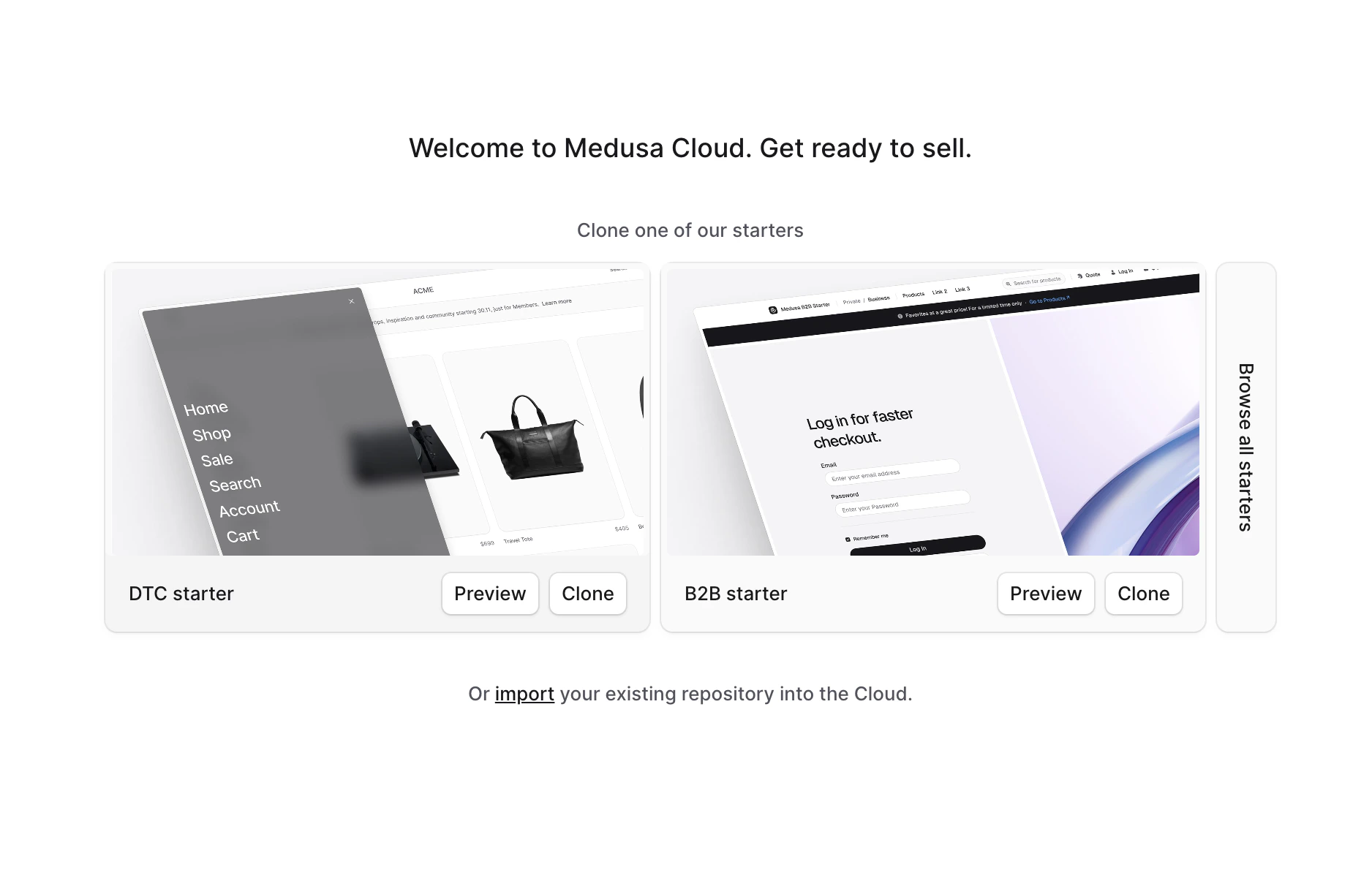
1. From the Medusa Cloud dashboard, choose **Import your existing repository into the Cloud** (the Mercur project lives in your own GitHub repo, not in the bundled DTC/B2B starters).
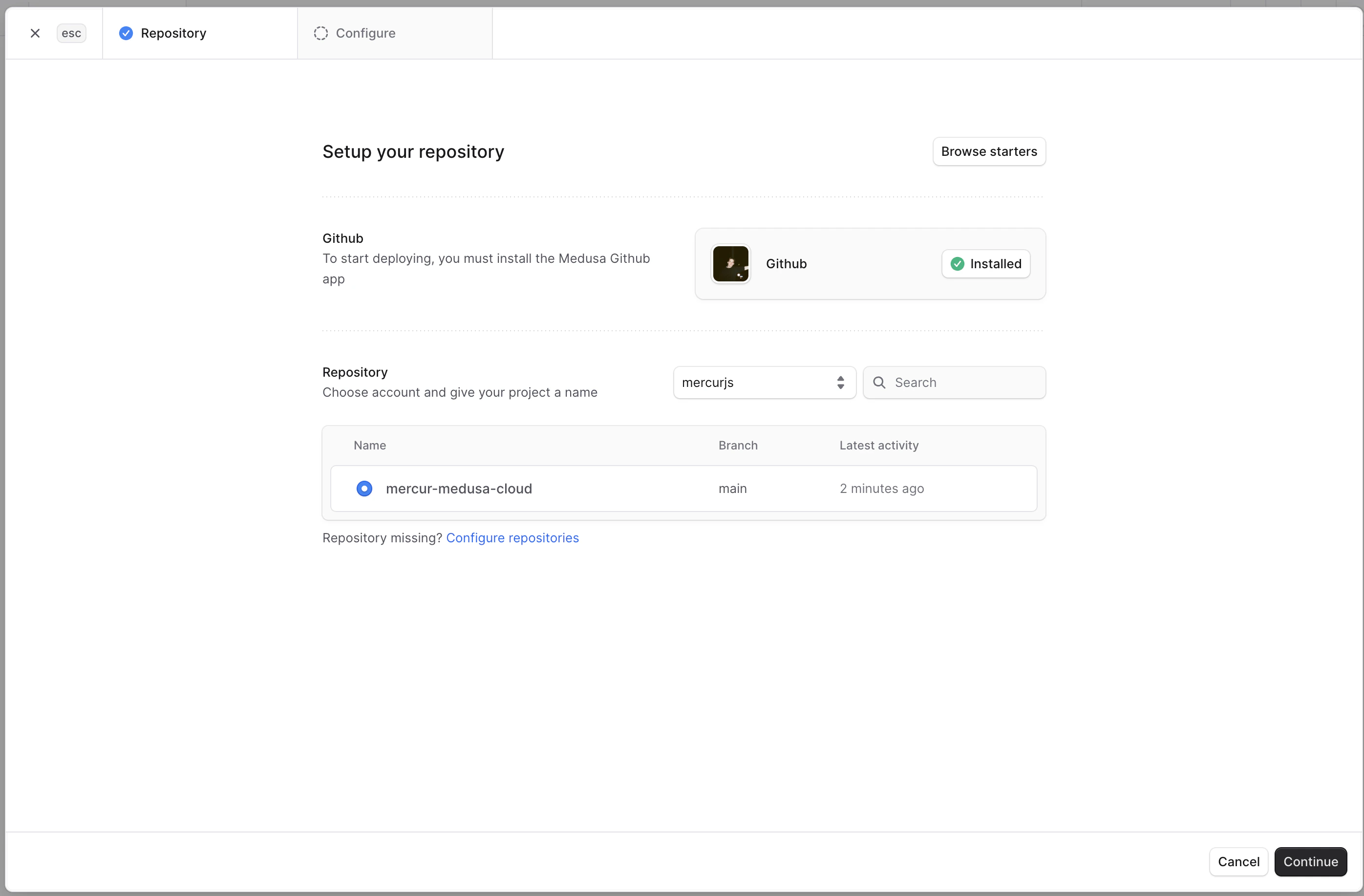
 2. On the **Repository** step, make sure the Medusa Cloud GitHub app is installed, pick your Mercur repository from the list, and click **Continue**.
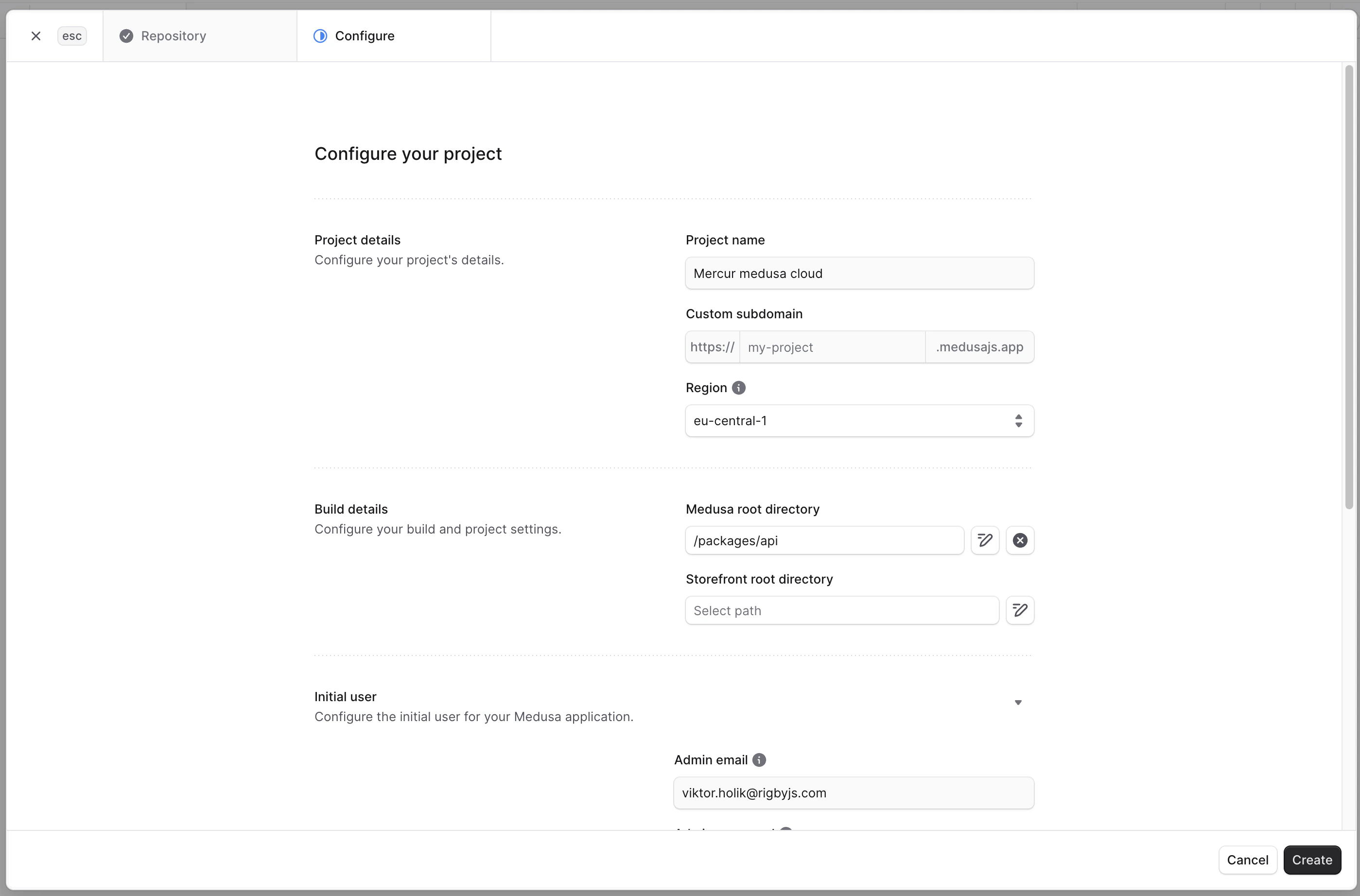
 3. On the **Configure** step, fill in:
* **Project name** and **Custom subdomain**. The subdomain determines your backend URL (`https://.medusajs.app`) — you will reference it in the environment variables below.
* **Region** closest to your users.
* **Medusa root directory**: `/packages/api`.
* **Initial user** — the first admin email and password.
Leave **Storefront root directory** empty — the Mercur basic template doesn't ship a storefront.
3. On the **Configure** step, fill in:
* **Project name** and **Custom subdomain**. The subdomain determines your backend URL (`https://.medusajs.app`) — you will reference it in the environment variables below.
* **Region** closest to your users.
* **Medusa root directory**: `/packages/api`.
* **Initial user** — the first admin email and password.
Leave **Storefront root directory** empty — the Mercur basic template doesn't ship a storefront.
 4. Scroll down to **Environment variables** and add the **Backend Environment Variables** below. Medusa Cloud provisions the database, Redis, and file storage automatically, so you don't need to set those.
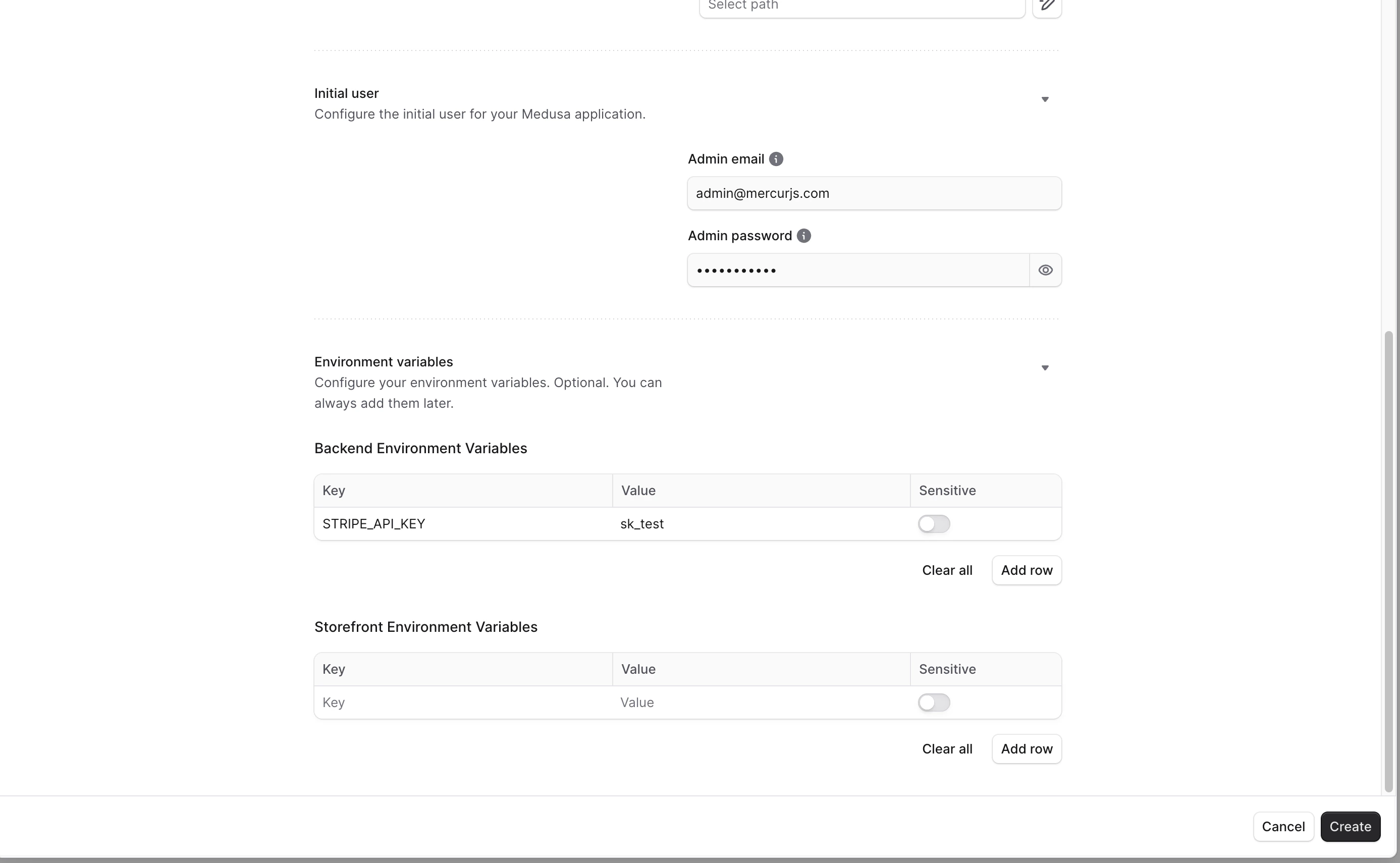 Only the following variables should be set:
```bash theme={null}
# Panels (build-time): the deployed backend origin, baked into the admin and
# vendor panels. Enable the **Build** toggle for this variable — the panels
# read it while they are being built, not at runtime.
MERCUR_BACKEND_URL=https://.medusajs.app
# CORS — the panels are served from the backend's own origin, so it is enough
# to list that origin (plus your storefront URL in STORE_CORS, if you have one)
STORE_CORS=https://.medusajs.app
ADMIN_CORS=https://.medusajs.app
VENDOR_CORS=https://.medusajs.app
AUTH_CORS=https://.medusajs.app
# Secrets
JWT_SECRET=
COOKIE_SECRET=
# Vendor panel URL used in seller emails and onboarding flows
MERCUR_VENDOR_URL=https://.medusajs.app/seller
# Stripe (customer payments + Mercur payout provider)
STRIPE_API_KEY=
STRIPE_WEBHOOK_SECRET=
STRIPE_PAYOUT_WEBHOOK_SECRET=
# Email (optional, e.g. Resend)
RESEND_API_KEY=
RESEND_FROM_EMAIL=
# Search (optional)
ALGOLIA_APP_ID=
ALGOLIA_API_KEY=
```
`MERCUR_BACKEND_URL` must have the **Build** toggle enabled in the Medusa Cloud
environment-variable settings. Without it, the production build stops with a clear
error rather than baking the localhost default into the panels.
For Stripe setup, including which keys go where and how to wire both webhooks,
see the [Stripe Connect integration
guide](/how-to-guides/stripe-connect-integration).
5. Click **Create**. The build and deploy process will start and can take a few minutes to complete.
You can change these variables later from the project's environment settings, and switch the deployment branch at any time. Medusa Cloud will automatically pull and rebuild your environment whenever a new commit is pushed to the selected branch. Remember that `MERCUR_BACKEND_URL` is baked into the panels at build time — changing it requires a redeploy.
## After deployment
Once the build succeeds, everything is served from `https://.medusajs.app`:
| Surface | URL |
| ------------ | ------------------------------------------------- |
| Backend API | `https://.medusajs.app` |
| Admin panel | `https://.medusajs.app/dashboard` |
| Vendor panel | `https://.medusajs.app/seller` |
Open the admin panel and sign in with the **Initial user** you configured in the setup step. If a panel shows a "Dashboard not built" page, the bundling step did not run — check the deployment's build logs for output from `bundle-dashboards`.
Prefer hosting the panels separately (for example on Vercel or Netlify)? That
still works: deploy `apps/admin` and `apps/vendor` as static Vite builds, set
`MERCUR_BACKEND_URL` (or `VITE_MERCUR_BACKEND_URL`) to the backend URL at build
time, and add the panel URLs to the backend's `ADMIN_CORS`, `VENDOR_CORS`, and
`AUTH_CORS` variables.
Only the following variables should be set:
```bash theme={null}
# Panels (build-time): the deployed backend origin, baked into the admin and
# vendor panels. Enable the **Build** toggle for this variable — the panels
# read it while they are being built, not at runtime.
MERCUR_BACKEND_URL=https://.medusajs.app
# CORS — the panels are served from the backend's own origin, so it is enough
# to list that origin (plus your storefront URL in STORE_CORS, if you have one)
STORE_CORS=https://.medusajs.app
ADMIN_CORS=https://.medusajs.app
VENDOR_CORS=https://.medusajs.app
AUTH_CORS=https://.medusajs.app
# Secrets
JWT_SECRET=
COOKIE_SECRET=
# Vendor panel URL used in seller emails and onboarding flows
MERCUR_VENDOR_URL=https://.medusajs.app/seller
# Stripe (customer payments + Mercur payout provider)
STRIPE_API_KEY=
STRIPE_WEBHOOK_SECRET=
STRIPE_PAYOUT_WEBHOOK_SECRET=
# Email (optional, e.g. Resend)
RESEND_API_KEY=
RESEND_FROM_EMAIL=
# Search (optional)
ALGOLIA_APP_ID=
ALGOLIA_API_KEY=
```
`MERCUR_BACKEND_URL` must have the **Build** toggle enabled in the Medusa Cloud
environment-variable settings. Without it, the production build stops with a clear
error rather than baking the localhost default into the panels.
For Stripe setup, including which keys go where and how to wire both webhooks,
see the [Stripe Connect integration
guide](/how-to-guides/stripe-connect-integration).
5. Click **Create**. The build and deploy process will start and can take a few minutes to complete.
You can change these variables later from the project's environment settings, and switch the deployment branch at any time. Medusa Cloud will automatically pull and rebuild your environment whenever a new commit is pushed to the selected branch. Remember that `MERCUR_BACKEND_URL` is baked into the panels at build time — changing it requires a redeploy.
## After deployment
Once the build succeeds, everything is served from `https://.medusajs.app`:
| Surface | URL |
| ------------ | ------------------------------------------------- |
| Backend API | `https://.medusajs.app` |
| Admin panel | `https://.medusajs.app/dashboard` |
| Vendor panel | `https://.medusajs.app/seller` |
Open the admin panel and sign in with the **Initial user** you configured in the setup step. If a panel shows a "Dashboard not built" page, the bundling step did not run — check the deployment's build logs for output from `bundle-dashboards`.
Prefer hosting the panels separately (for example on Vercel or Netlify)? That
still works: deploy `apps/admin` and `apps/vendor` as static Vite builds, set
`MERCUR_BACKEND_URL` (or `VITE_MERCUR_BACKEND_URL`) to the backend URL at build
time, and add the panel URLs to the backend's `ADMIN_CORS`, `VENDOR_CORS`, and
`AUTH_CORS` variables.