This guide explains how to manage stores in the Mercur Admin Panel.Documentation Index
Fetch the complete documentation index at: https://docs.mercurjs.com/llms.txt
Use this file to discover all available pages before exploring further.
View stores
To view all stores, select Stores in the sidebar menu in your panel. The table shows store details like name, email, status, date and whether the admin featured the store. Use search, filter, and sort to find a specific store. One vendor can have multiple stores, each displayed separately in the list.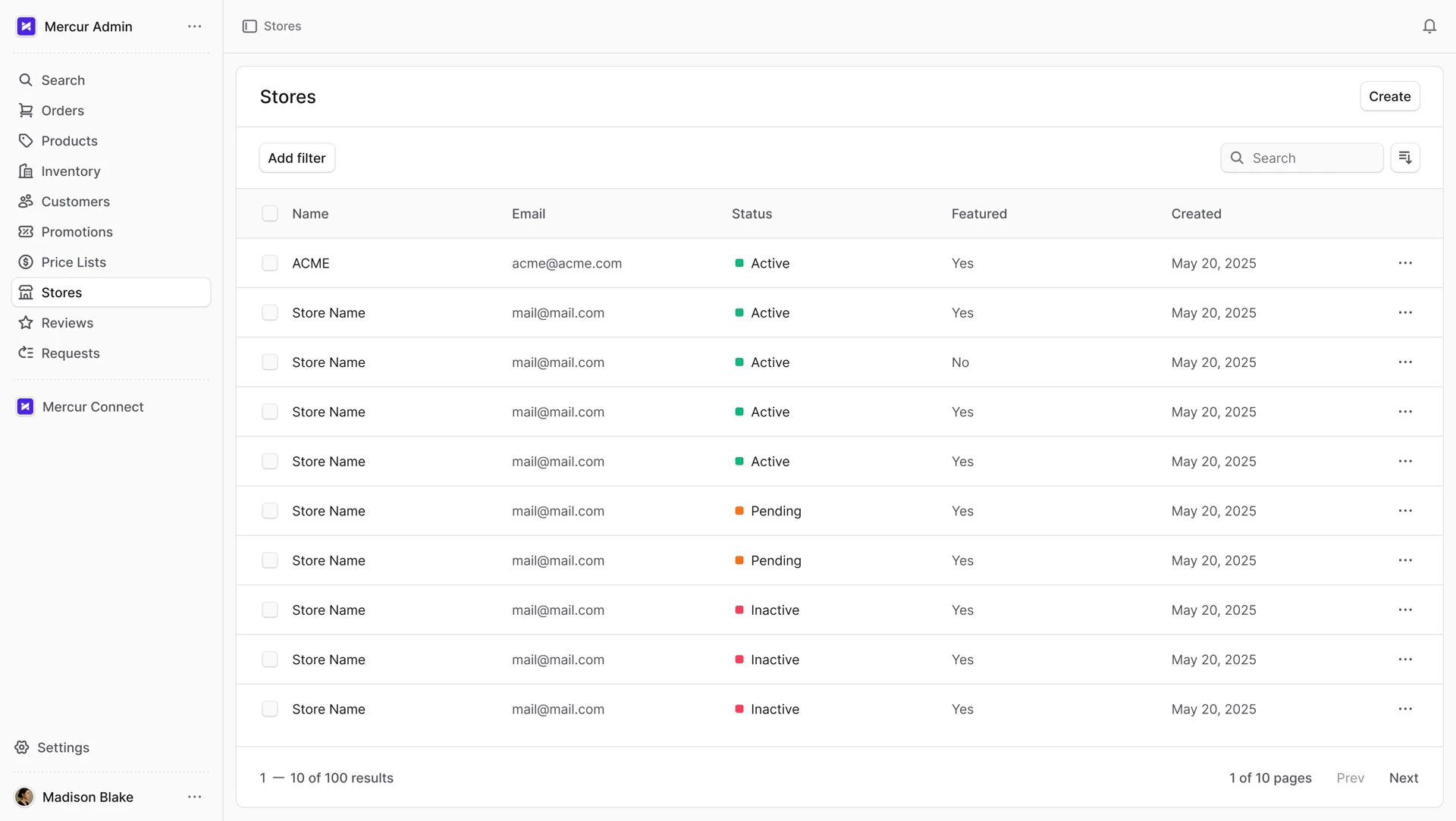
Create store
To create a store:- Go to Stores in the sidebar.
- Click the Create button.
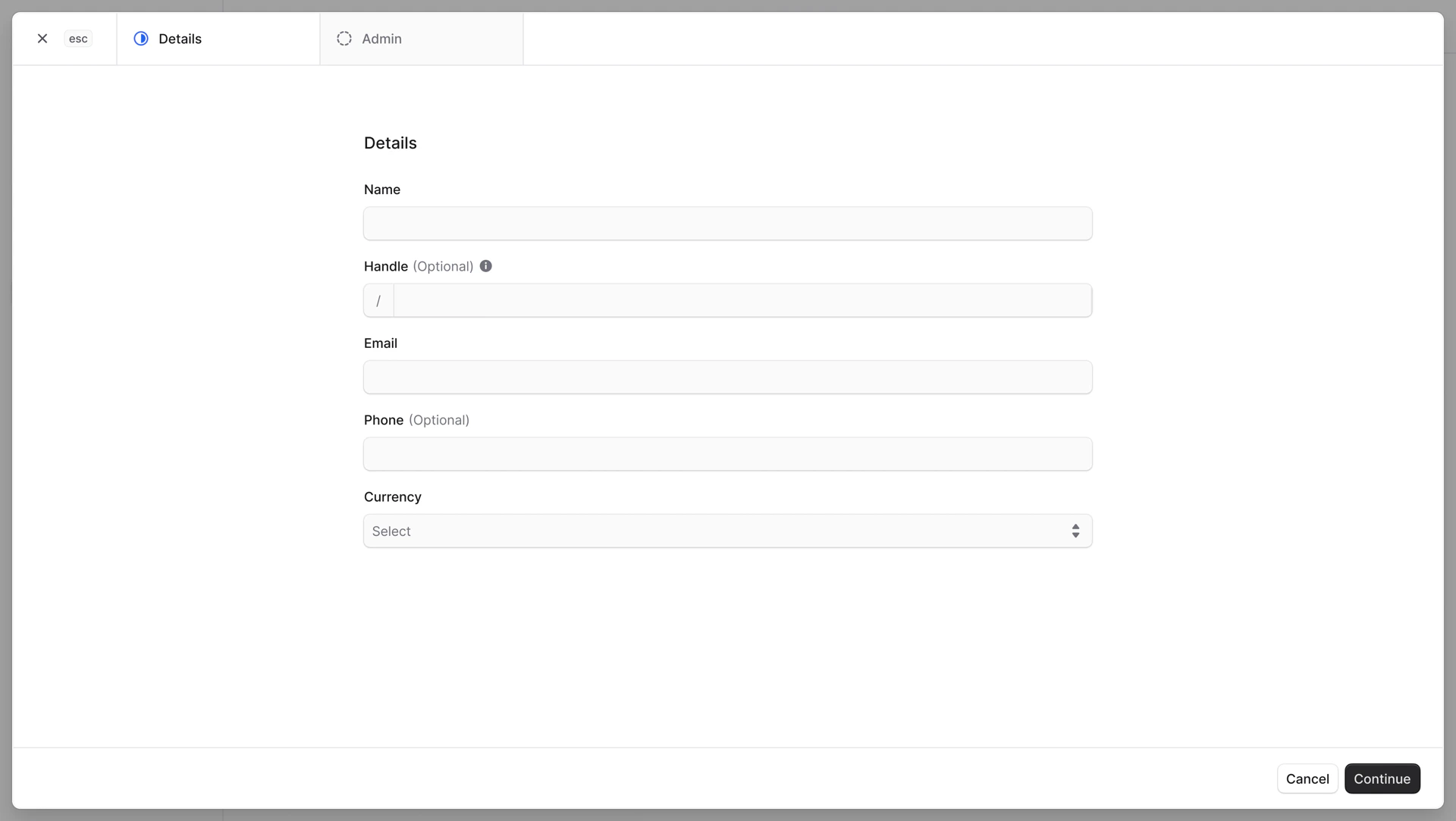
Details step
In the first Details step, you can enter the store general information:- Name
- Handle. The handle appears in the store storefront URL. It creates a human-readable URL and must be unique across all stores, containing only lowercase letters, numbers, and hyphens. If left blank, Mercur generates a handle from the name.
- Phone
- Currency. Each store can have only one currency.
Admin step
In the second Admin step, you assign an admin vendor to manage this store. You can select an existing user or invite a new one. As you type, suggestions will appear: select one or add a new email. Once the store is created, the selected user will receive an email invitation to join.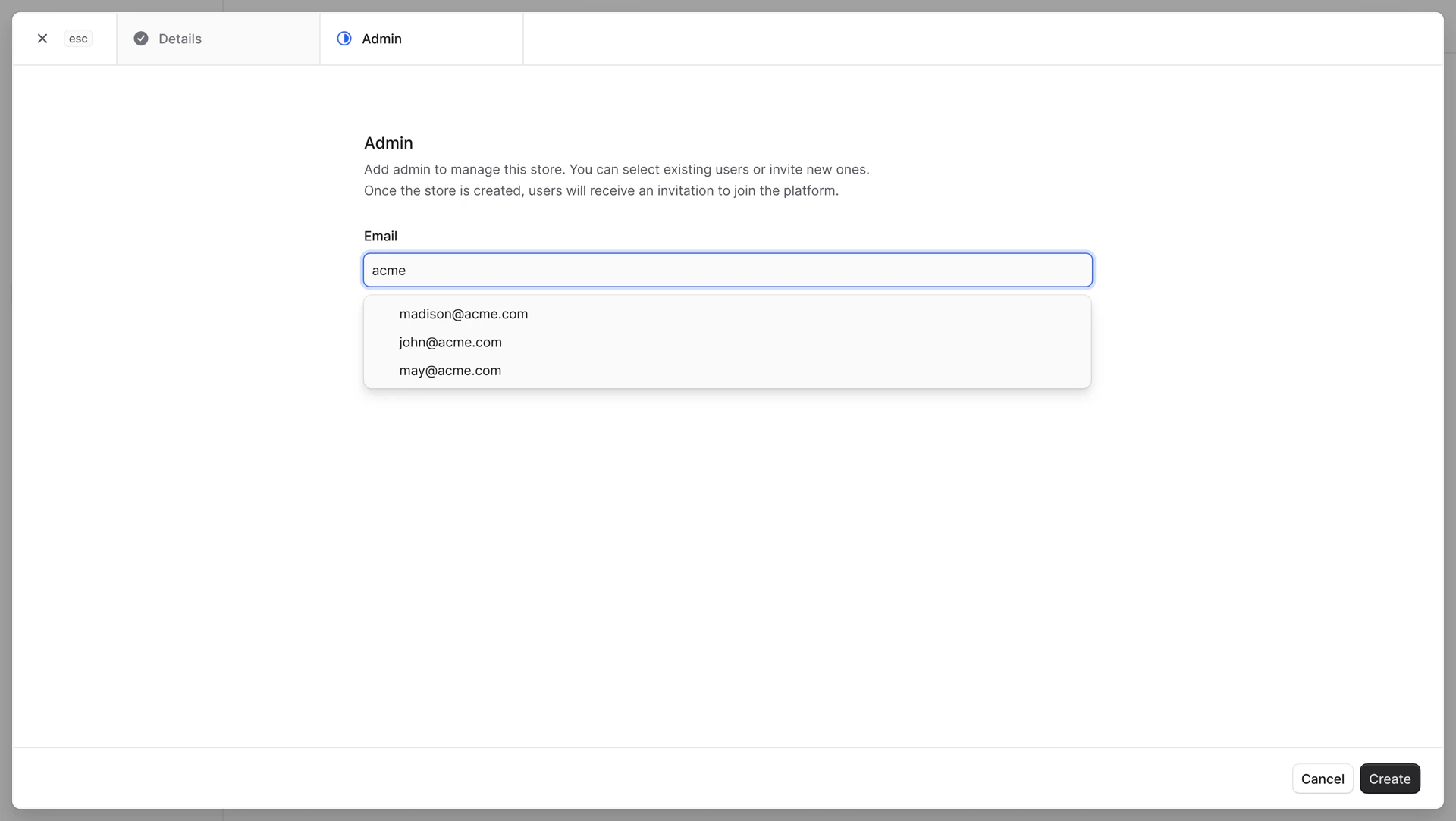
Store details
To view store details:- Go to Stores in the sidebar.
- Choose the store from the list.
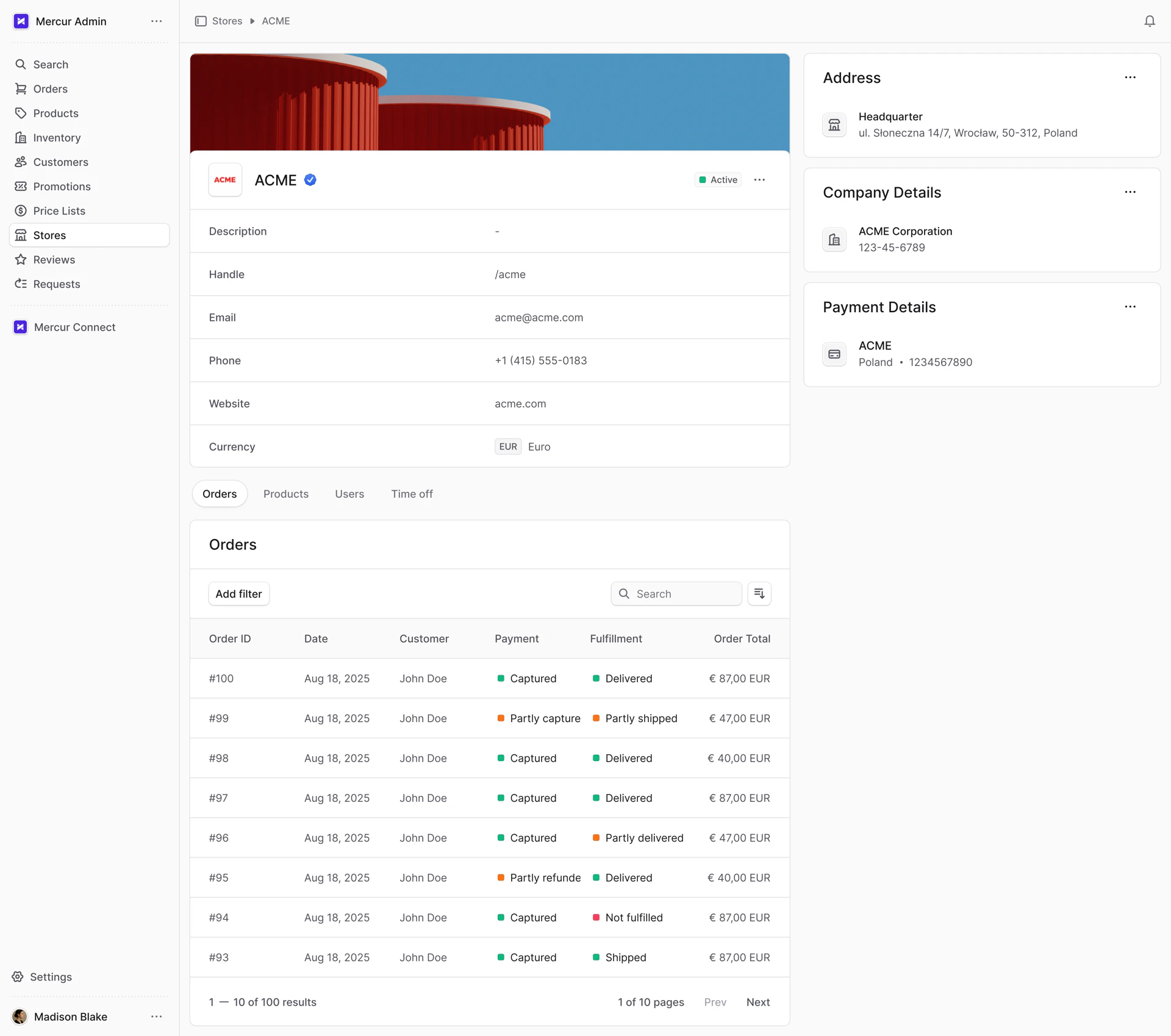
Edit store details
To edit store details:- Go to Stores in the sidebar.
- Choose the store from the list.
- Click the icon in the section header.
- Choose Edit from the dropdown.
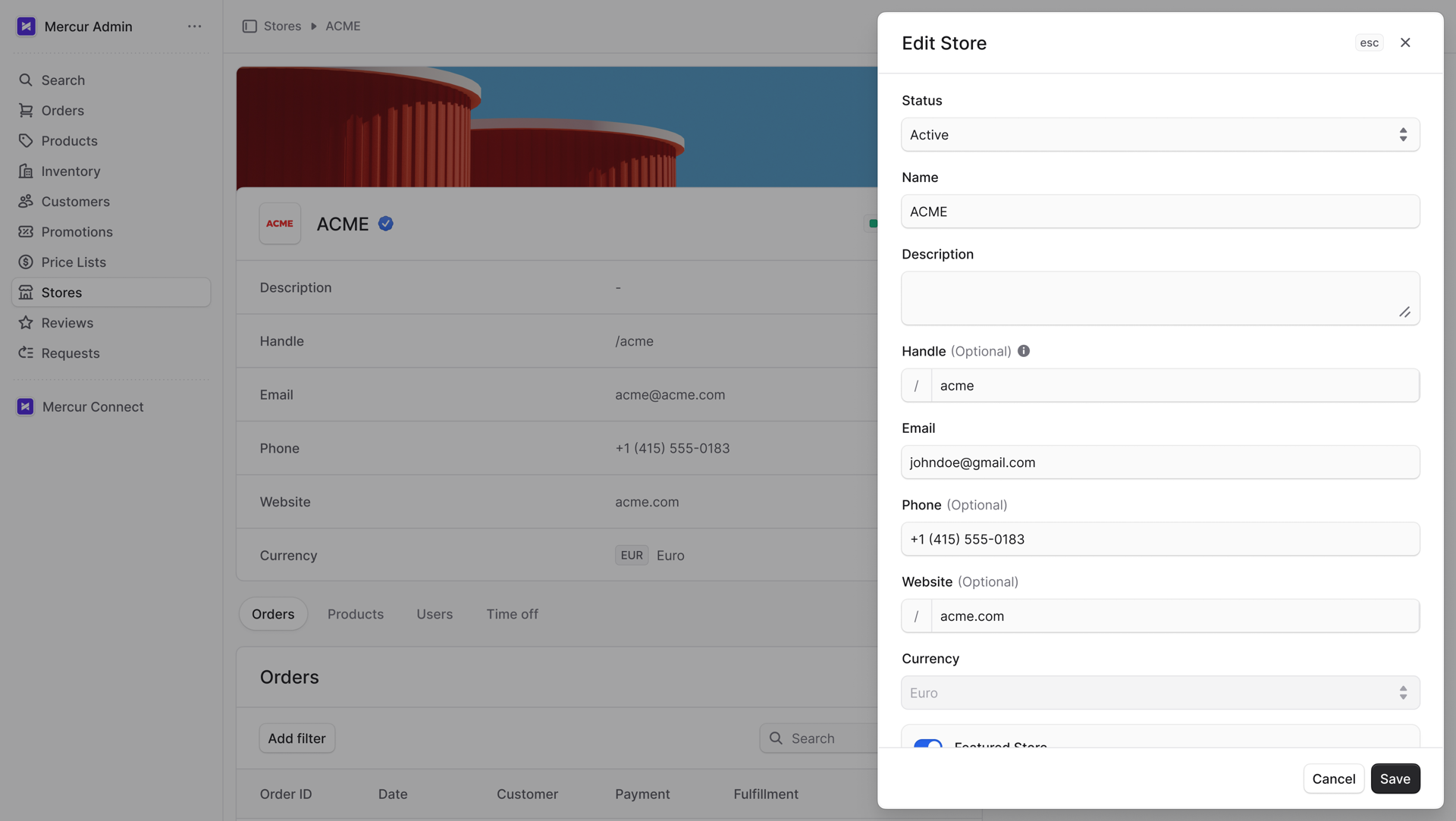
- Edit the store details in the side window.
- Status. There are three statuses: Active, Pending, Inactive. When a store is Inactive or Pending, their products won’t be visible on the storefront.
- Name
- Description
- Handle
- Phone
- Website
- Featured Store Settings. If checked, the store will be highlighted with a special badge for internal use or promotional purposes.
- Media. You can add logo and banner. This media will be visible on the storefront.
Once the admin edits store details, the vendor is notified in their panel.
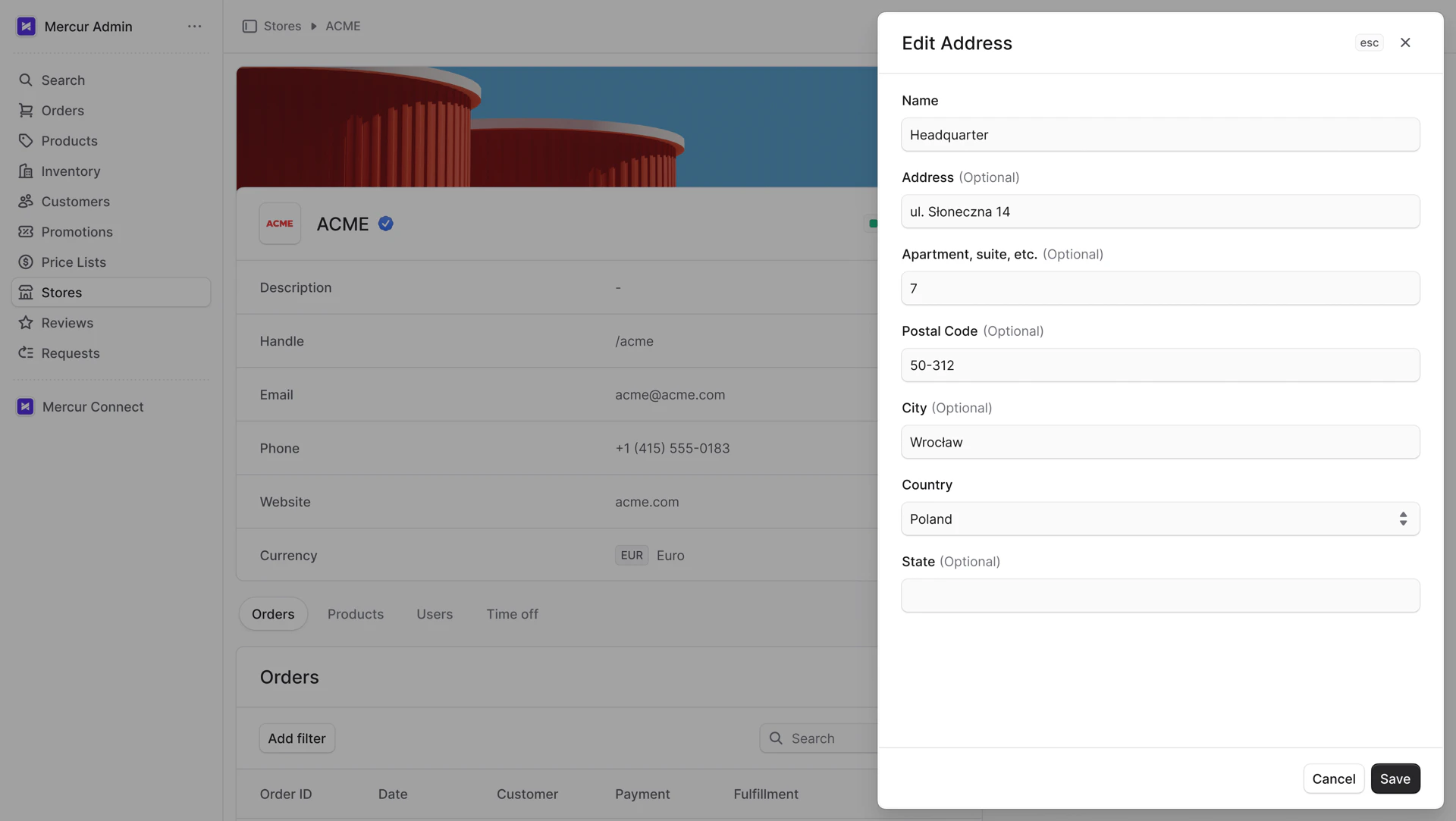
Edit store address
To edit store address:- Go to Stores in the sidebar.
- Choose the store from the list.
- Click the icon in the Address header.
- Choose Edit from the dropdown.
- Name
- Address
- Apartment, suite, etc.
- Postal Code
- City
- Country
- State
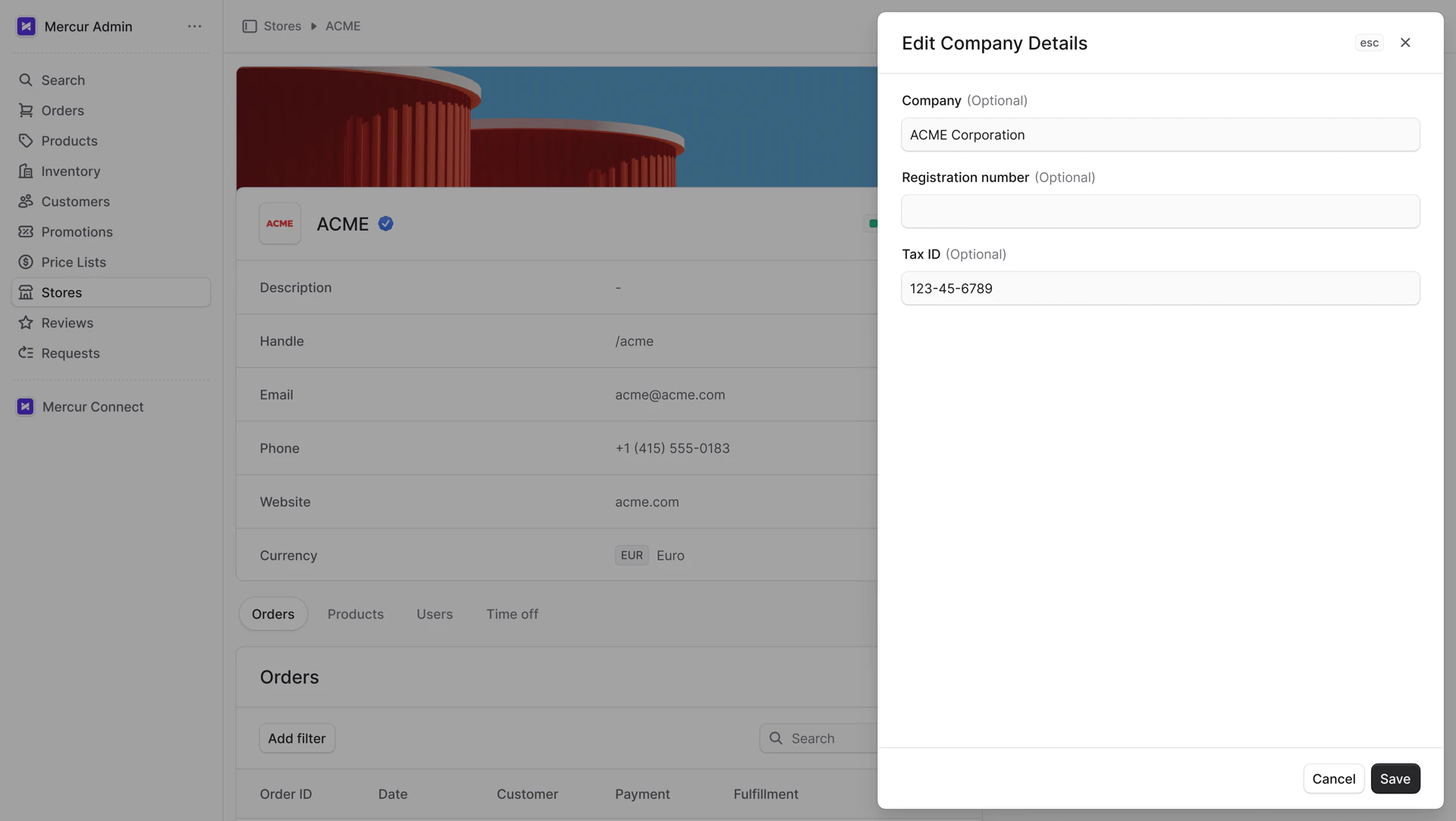
Edit store company details
To edit company details:- Go to Stores in the sidebar.
- Choose the store from the list.
- Click the icon in the Company Details header.
- Choose Edit from the dropdown.
- Company
- Registration number
- Tax ID
Edit store payment details
To edit payment details:- Go to Stores in the sidebar.
- Choose the store from the list.
- Click the icon in the Payment Details header.
- Choose Edit from the dropdown.
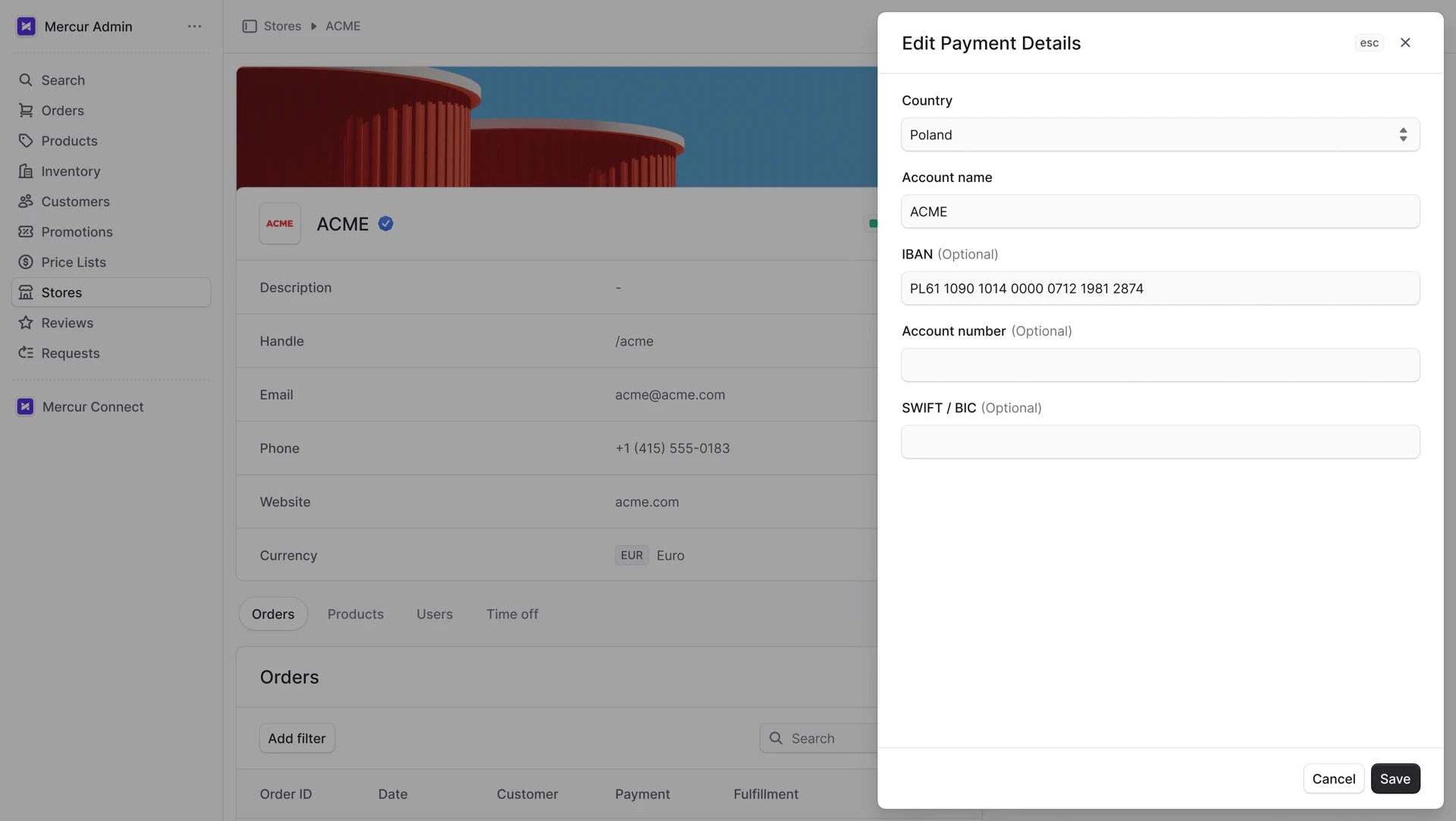
- Edit payment details in the side window.
- Account name
- IBAN
- Account number
- SWIFT/BIC
- Account name
- Account number
- ACH routing number
Users
In the Users tab, view all store team members who manage the store. You can add new users by selecting existing ones from your base or inviting new members. You can also remove users from the store. The user added during store creation is the main admin and cannot be removed. This user is marked with an Admin badge.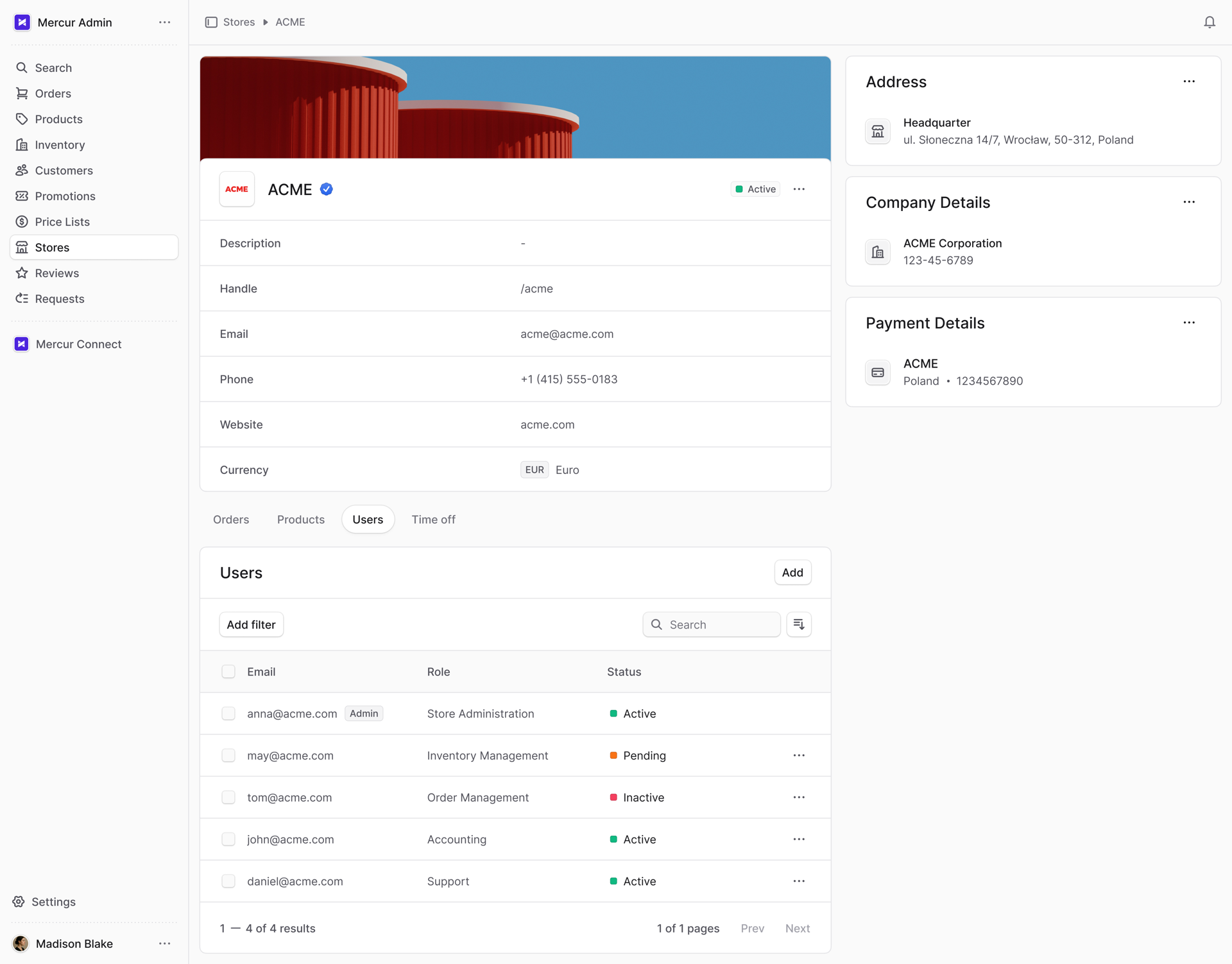
Add new user
To add a new user:- Go to Stores in the sidebar.
- Choose the store from the list.
- Select the Users tab.
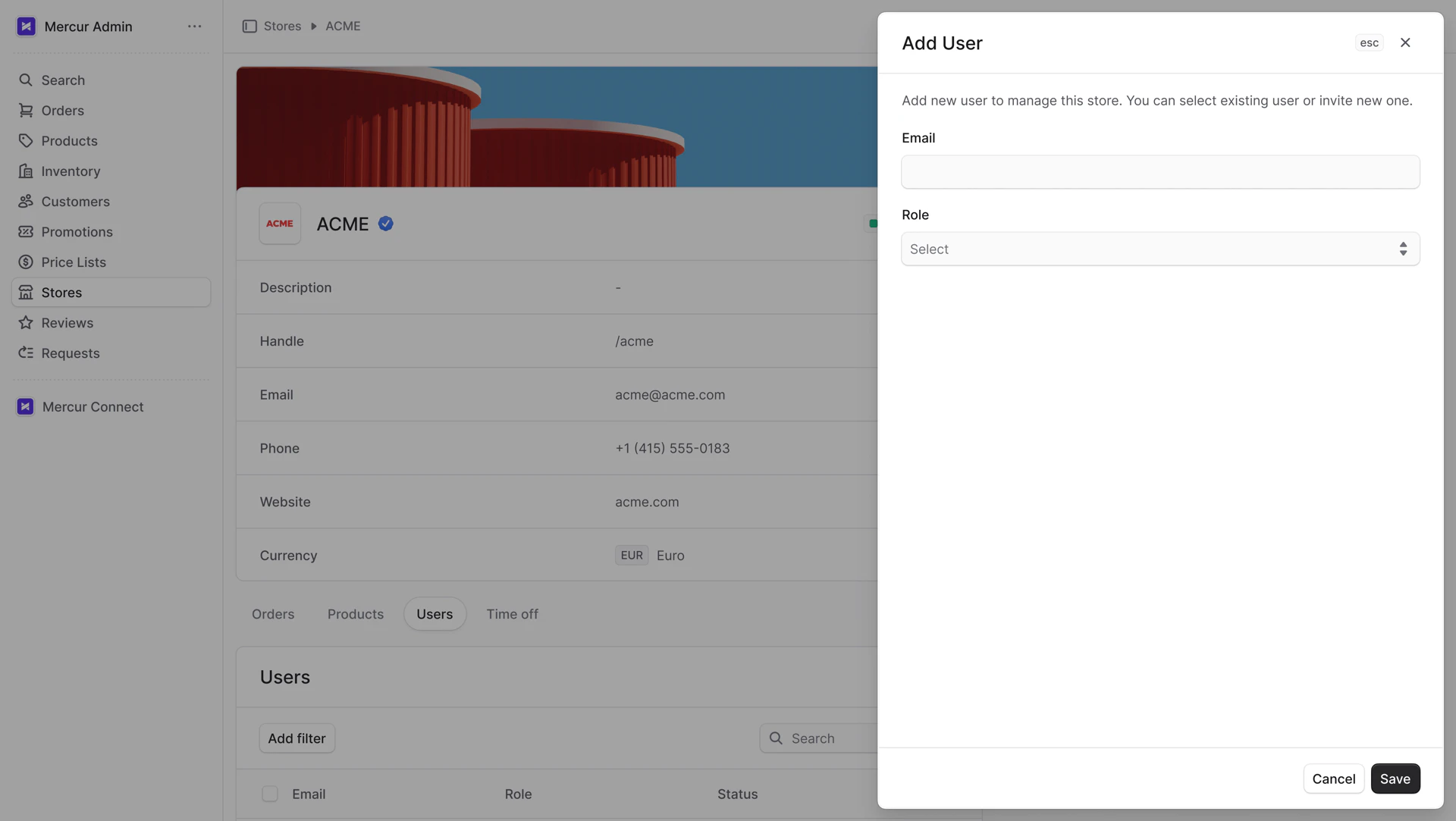
- Click the Add button in the section header.
- Email. As you type, suggestions will appear; select one or add a new email.
- Role. There are five roles:
- Store Administration
- Inventory Management
- Order Management
- Accounting
- Support
Time off
In the Time off tab, view the store’s time off. It specifies the period when the store will be unavailable to receive orders. The vendor can specify one time off period and add a note. During this period, the store’s products will not be visible on the storefront.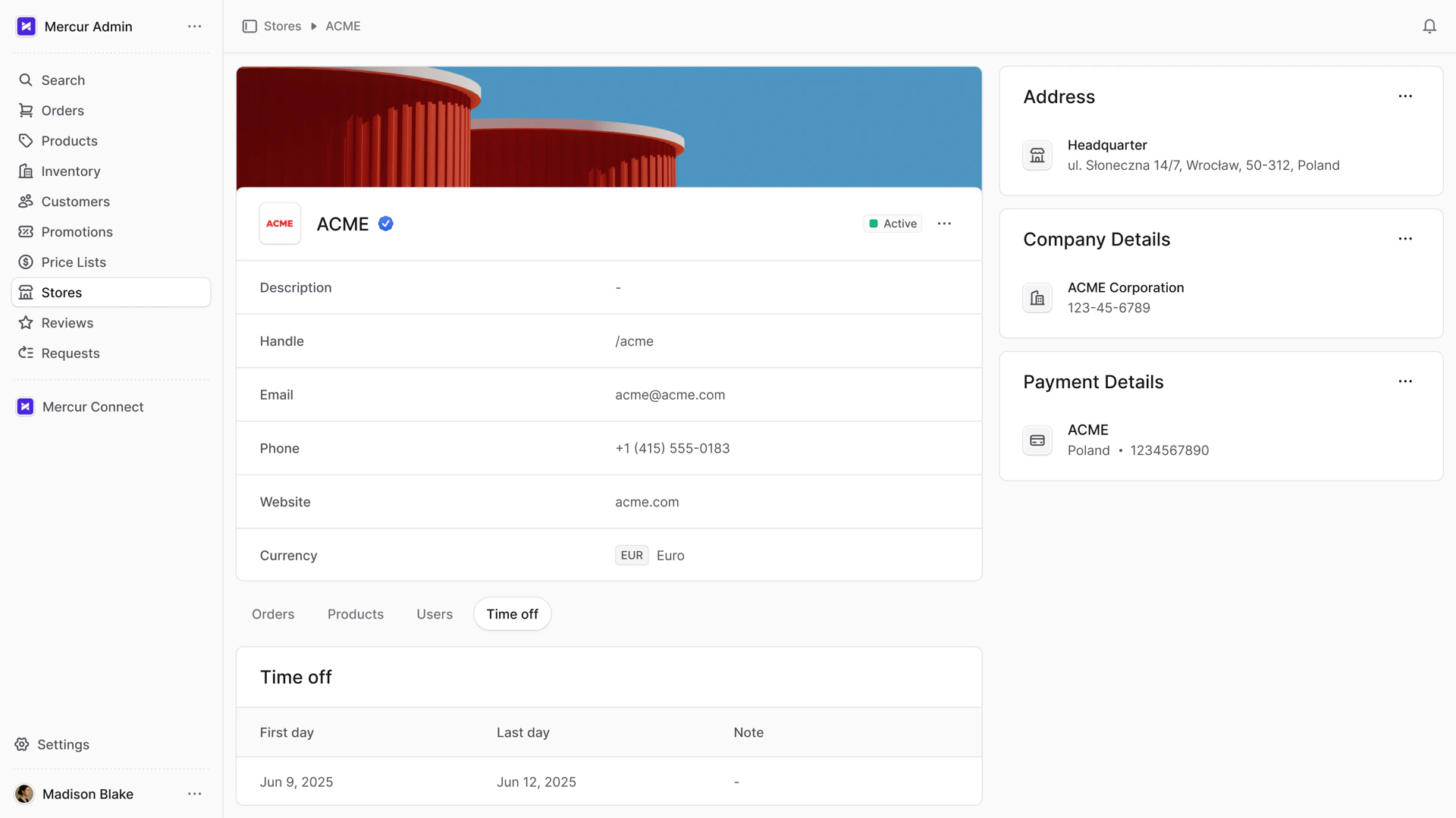
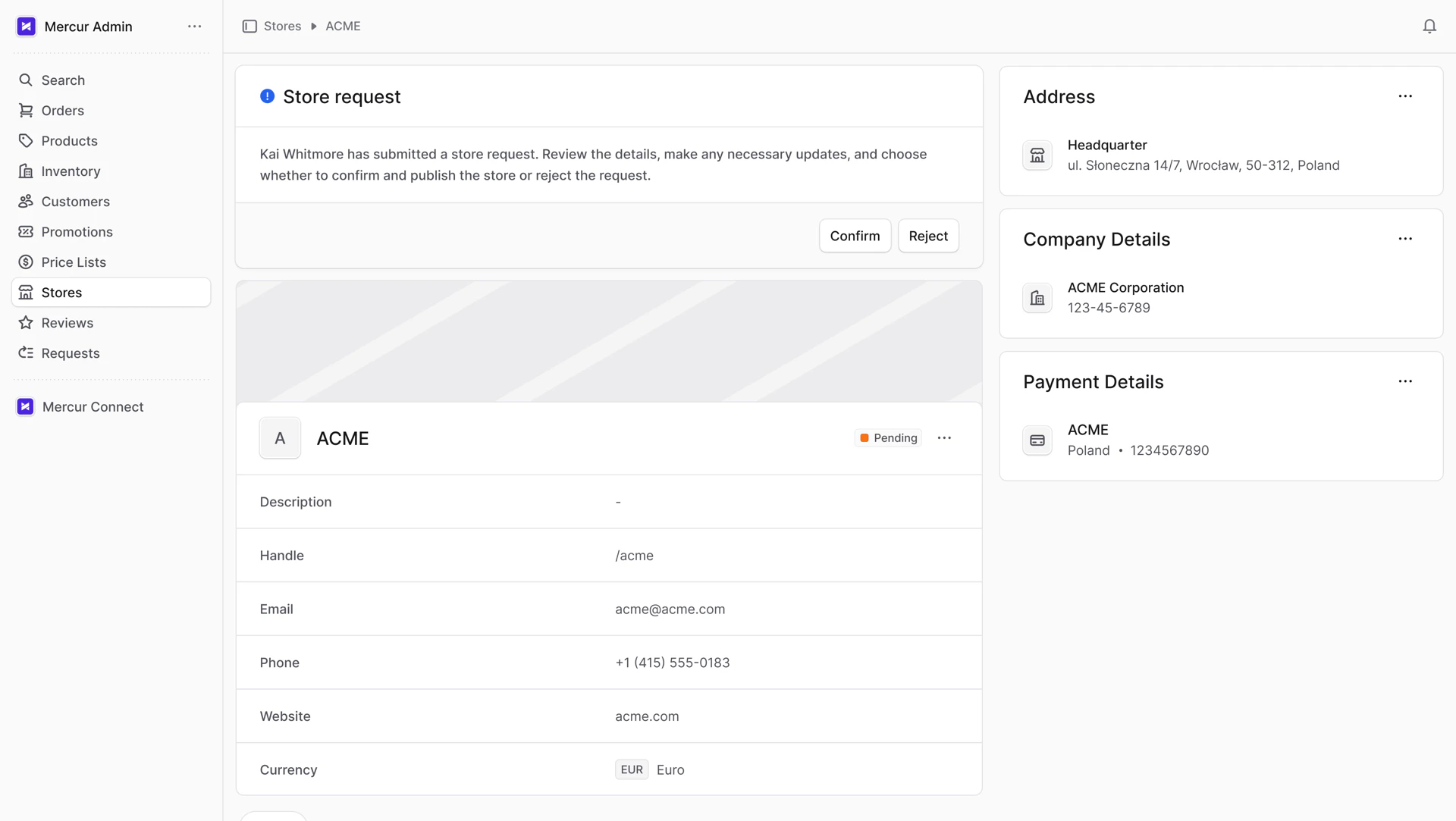
Store request
The vendor can submit a request to create a new store. Once submitted, the store appears on the list with Pending status. On the store details page, a block appears at the top with two actions:- Confirm
- Reject
Once the admin confirms or rejects the store creation request, the vendor receives an email.